
Overview
Once you’ve deployed your crew to the CrewAI AMP platform, you can kickoff executions through the web interface or the API. This guide covers both approaches.Method 1: Using the Web Interface
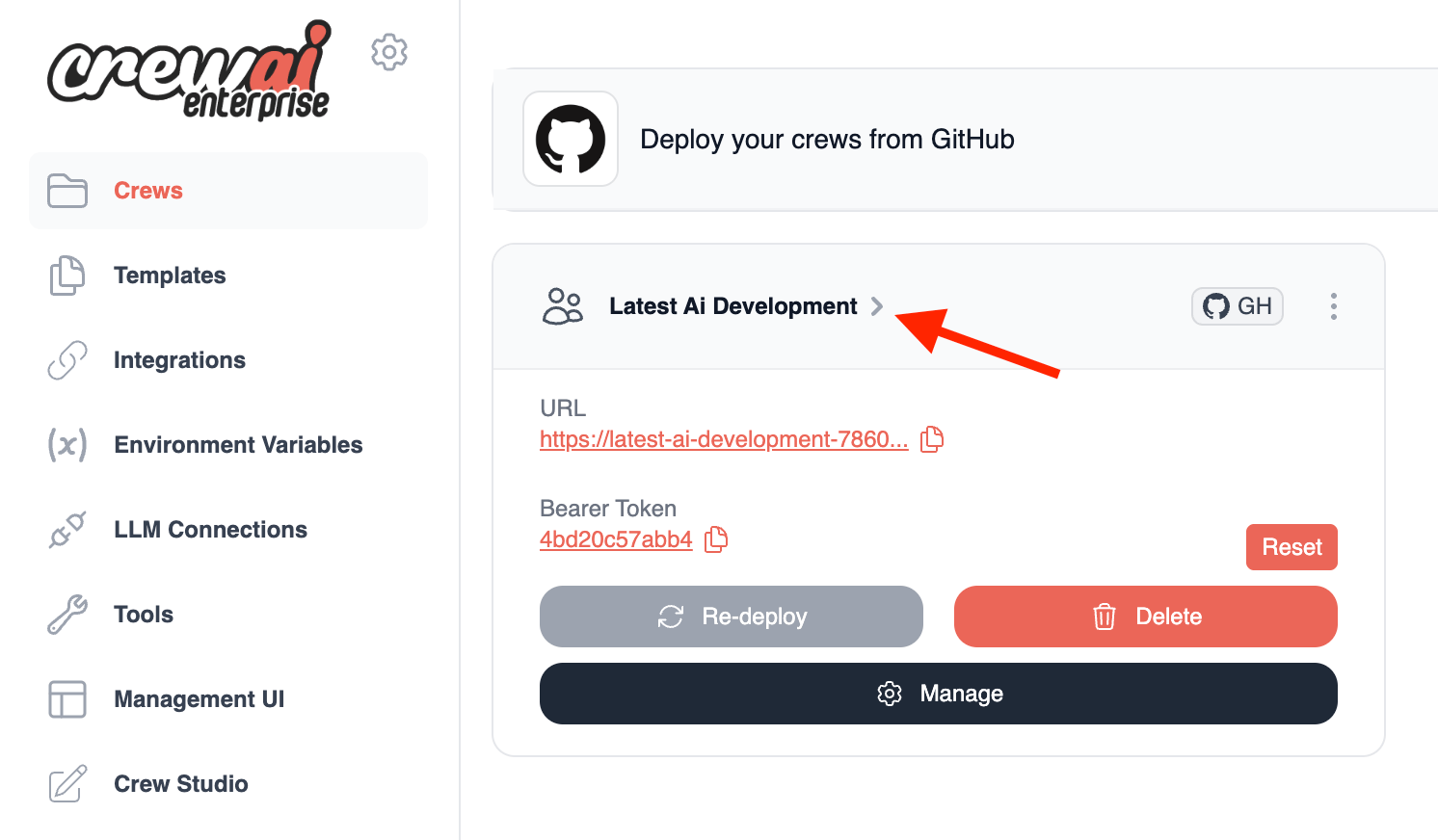
Step 1: Navigate to Your Deployed Crew
- Log in to CrewAI AMP
- Click on the crew name from your projects list
- You’ll be taken to the crew’s detail page
Step 2: Initiate Execution
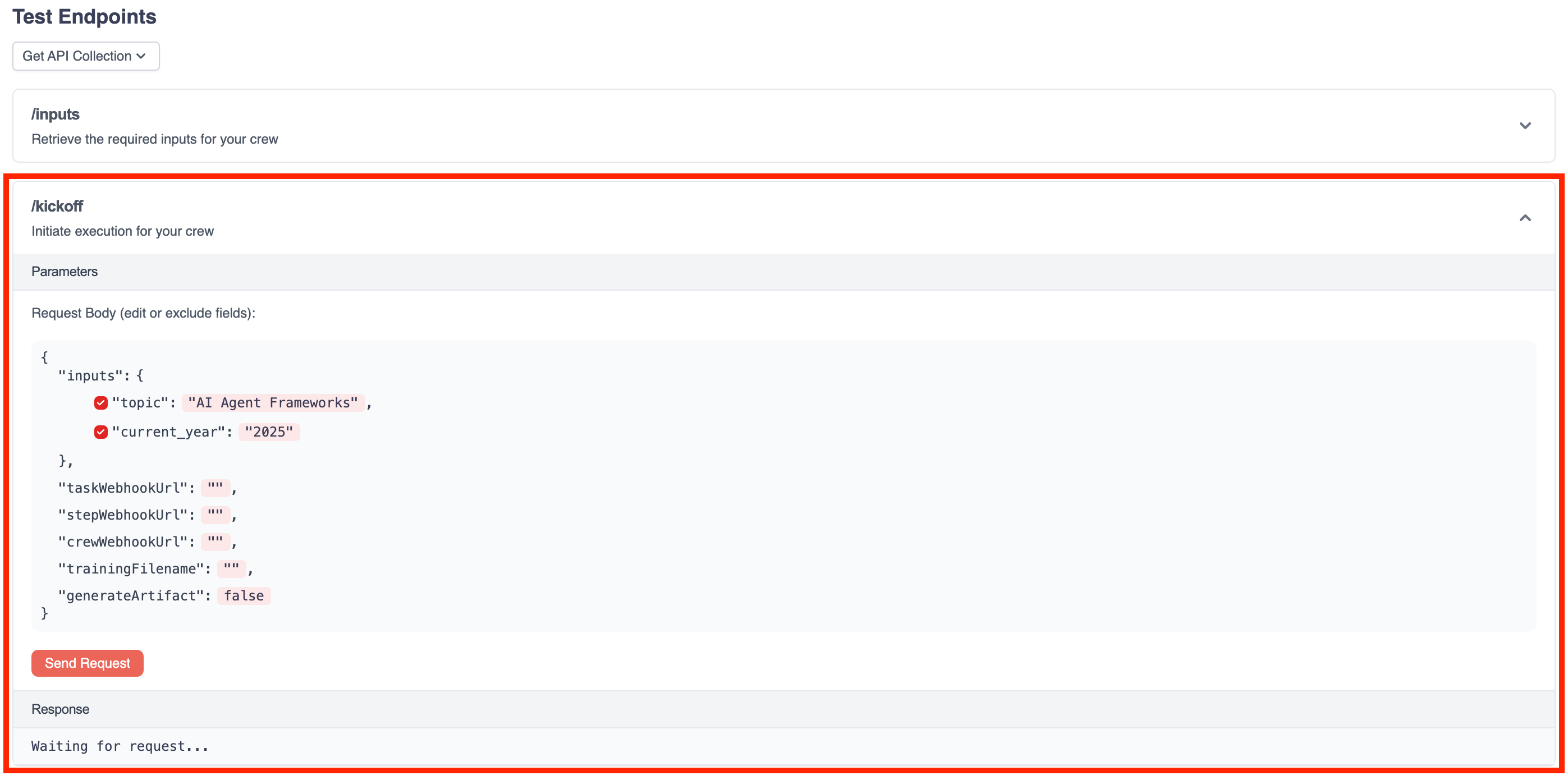
From your crew’s detail page, you have two options to kickoff an execution:Option A: Quick Kickoff
- Click the
Kickofflink in the Test Endpoints section - Enter the required input parameters for your crew in the JSON editor
- Click the
Send Requestbutton
Option B: Using the Visual Interface
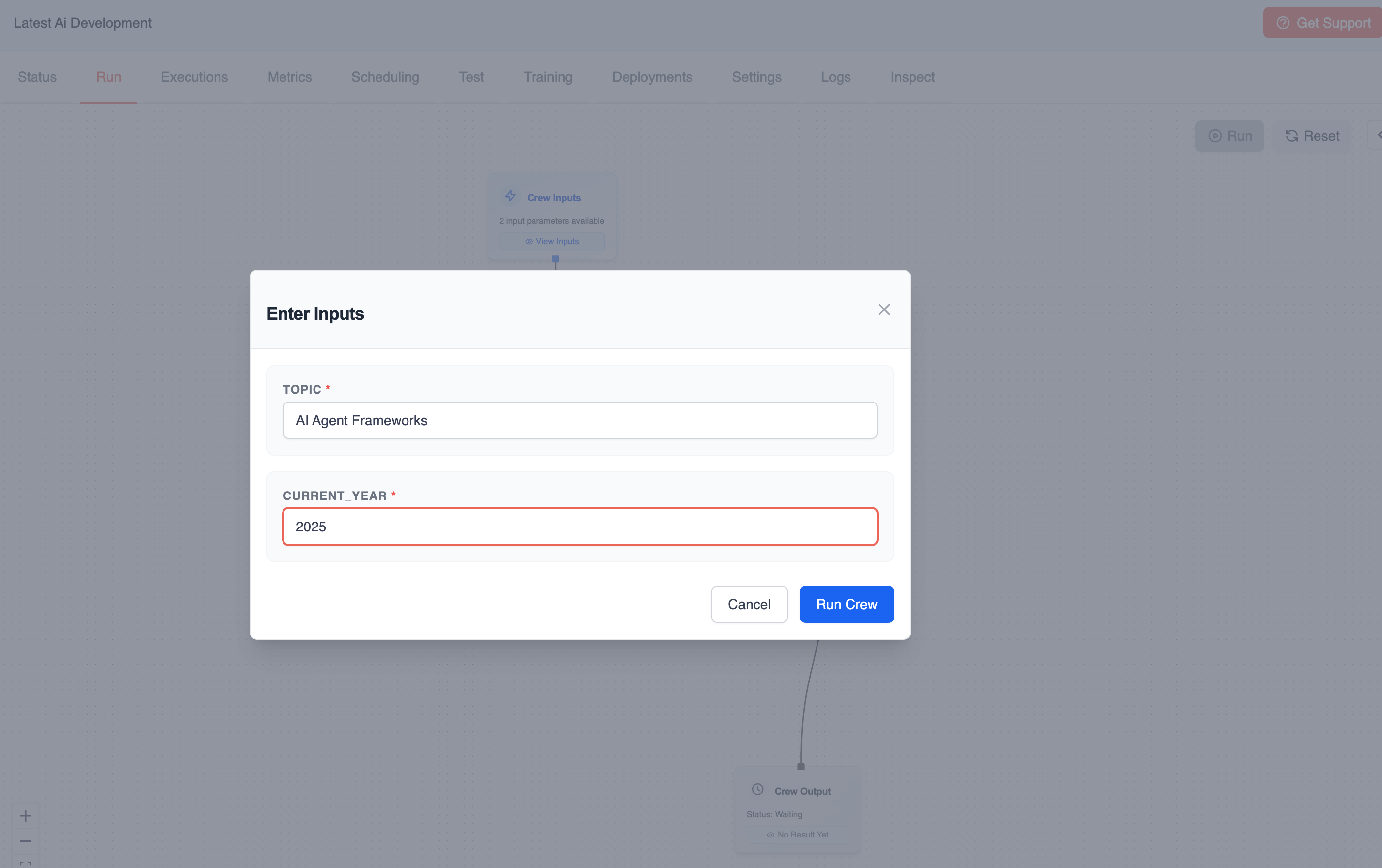
- Click the
Runtab in the crew detail page - Enter the required inputs in the form fields
- Click the
Run Crewbutton
Step 3: Monitor Execution Progress
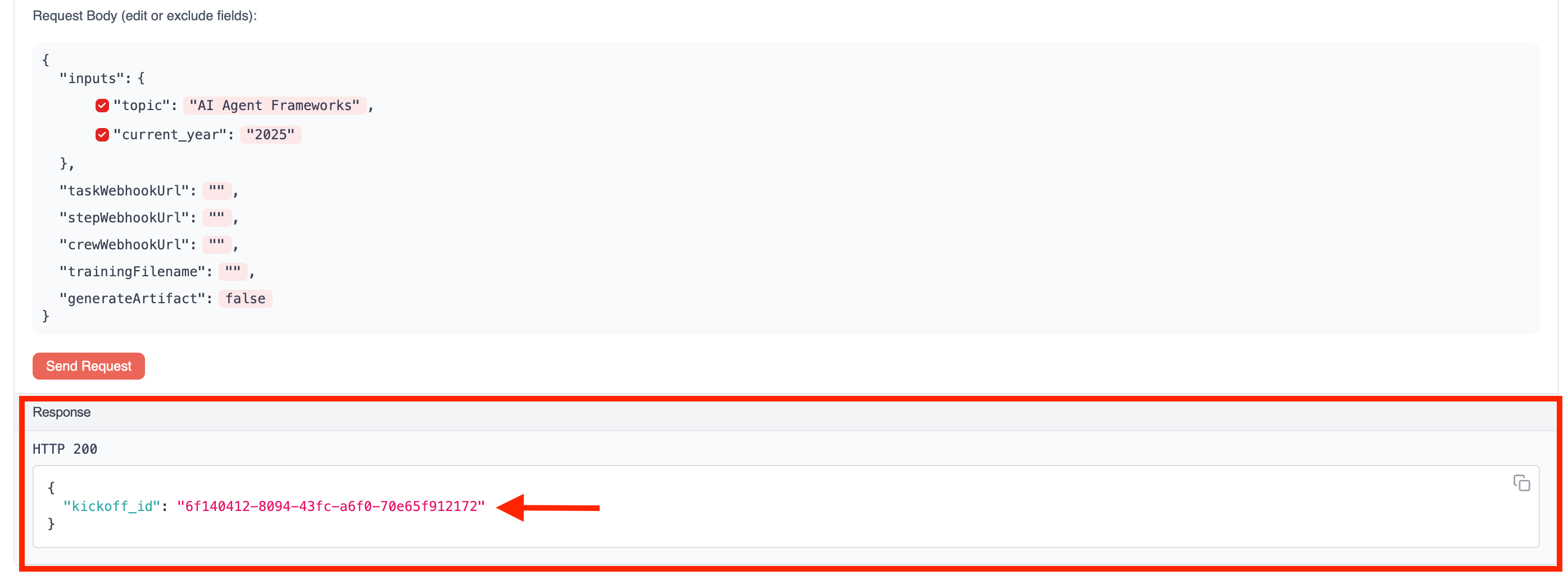
After initiating the execution:- You’ll receive a response containing a
kickoff_id- copy this ID - This ID is essential for tracking your execution
Step 4: Check Execution Status
To monitor the progress of your execution:- Click the “Status” endpoint in the Test Endpoints section
- Paste the
kickoff_idinto the designated field - Click the “Get Status” button

- Current execution state (
running,completed, etc.) - Details about which tasks are in progress
- Any outputs produced so far
Step 5: View Final Results
Once execution is complete:- The status will change to
completed - You can view the full execution results and outputs
- For a more detailed view, check the
Executionstab in the crew detail page
Method 2: Using the API
You can also kickoff crews programmatically using the CrewAI AMP REST API.Authentication
All API requests require a bearer token for authentication:Checking Crew Health
Before executing operations, you can verify that your crew is running properly:Step 1: Retrieve Required Inputs
First, determine what inputs your crew requires:topic and current_year.
Step 2: Kickoff Execution
Initiate execution by providing the required inputs:kickoff_id that you’ll need for tracking:
Step 3: Check Execution Status
Use thekickoff_id to get the status of the execution:
Response Fields
A field that has no value is
null.
Progress
Theprogress object shows how much of the work is complete.
A flow selects the next step while it runs. The number of steps is not known before the flow stops. For a flow,
total and remaining are always null:
Events
An event shows what the execution did at a given time. Each event is a summary. An event does not contain the prompts, the outputs or the state of the flow.
The
events list keeps the 100 most recent events. If the execution sends more events, the platform removes the oldest events from the list. The events_count field gives the number of all the events. The events_by_type field also counts all the events. These two fields stay correct when the list is full.
Attribution
Thetriggered_by object tells you who started the execution.
The response gives the type and the identifier only. It does not give the name, the email address or the organization. Each token for a deployment can read the status of each execution of that deployment. The response does not include personal data.
If the request uses the static
AUTH_TOKEN of the deployment, the type is unknown. If the platform does not know the identity, triggered_by is null.
Execution Origin
Theexecution_origin field tells you how the execution started.
Optional Settings
Set these environment variables on the deployment to change the event log.These limits apply:
- A deployment that runs crewAI 1.15.21 or before gives
nullfor the progress data and for the event data. Upgrade the crewAI version in your project, then deploy the crew again. - An execution that waits in the queue has the state
PENDING. It givesnullfortriggered_by. - A flow that continues after human feedback counts only the steps after the feedback.
- A response that has
"source": "application"givesnullfor the progress data and for the event data.
Handling Executions
Long-Running Executions
For executions that may take a long time:- Consider implementing a polling mechanism to check status periodically
- Use webhooks (if available) for notification when execution completes
- Implement error handling for potential timeouts
Execution Context
The execution context includes:- Inputs provided at kickoff
- Environment variables configured during deployment
- Any state maintained between tasks
Debugging Failed Executions
If an execution fails:- Check the “Executions” tab for detailed logs
- Review the “Traces” tab for step-by-step execution details
- Look for LLM responses and tool usage in the trace details
Need Help?
Contact our support team for assistance with execution issues or questions
about the Enterprise platform.